
How to Use phpMyAdmin with WordPress: Complete 2026 Guide to Installation, Security, and Advanced Database Management
1 minggu ago · Updated 1 minggu ago

phpMyAdmin (often abbreviated as PMA) remains one of the most popular and powerful free, open-source, web-based tools for managing MySQL and MariaDB databases in 2026. For WordPress users and developers, it provides an intuitive graphical interface to perform complex database operations that would otherwise require SSH access and command-line SQL queries.
Whether you need to create a new database for a fresh WordPress installation, back up your site, perform search-and-replace operations after a domain migration, reset a lost admin password, or optimize tables, phpMyAdmin makes these tasks significantly easier and faster.
In this comprehensive 2026 guide, we cover everything you need to know about using phpMyAdmin with WordPress:
- How to install phpMyAdmin on Linux (Ubuntu), WAMP, and XAMPP
- Essential security best practices to protect your database
- Common WordPress administration scenarios and how to handle them safely with PMA
- Advanced tips for performance, backups, and troubleshooting
phpMyAdmin is especially valuable because it allows you to run SQL commands directly in your browser without needing persistent SSH sessions — a huge advantage when working on unstable connections like mobile data or public Wi-Fi.
phpMyAdmin is a free web application written in PHP that provides a user-friendly interface for managing MySQL/MariaDB databases. Instead of typing SQL commands in a terminal, you can click through tables, run queries visually, import/export data, and manage users and privileges — all from your browser.
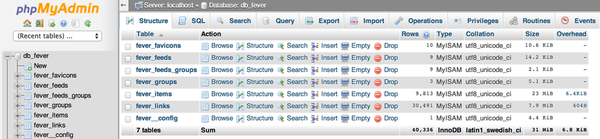
For WordPress users, phpMyAdmin is incredibly useful because every WordPress site relies on a MySQL database to store posts, pages, settings, users, comments, and more. Direct database access via PMA lets you:
- Fix broken sites when the WordPress admin is inaccessible
- Perform bulk search-and-replace operations (e.g., after moving to a new domain)
- Create and manage multiple WordPress databases on one server
- Back up or restore your entire site database
- Optimize and repair corrupted tables
- Reset passwords or fix user permission issues
While modern hosting panels (cPanel, Plesk, etc.) often include database tools, phpMyAdmin gives you more direct control and is especially valuable for local development environments (WAMP/XAMPP) and VPS/dedicated servers.
Installing phpMyAdmin on a Linux server (Ubuntu 22.04/24.04 recommended in 2026) is straightforward:
sudo apt update
sudo apt install phpmyadmin
During installation, choose to configure with Apache and set up a database for phpMyAdmin (recommended).
After installation, secure the access URL by adding an alias in the configuration:
sudo nano /etc/phpmyadmin/apache.conf
Add or modify:
Alias /mysecurepma /usr/share/phpmyadmin
Then reload Apache:
sudo systemctl reload apache2
You can now access phpMyAdmin at http://yourdomain.com/mysecurepma instead of the default /phpmyadmin path.
phpMyAdmin is a powerful tool, which also makes it a prime target for attackers. Follow these essential security steps:
- Use Strong, Unique Passwords Especially for the MySQL root account and any WordPress database users.
- Change the Default URL Never use /phpmyadmin. Use an obscure alias like /dbadmin2026 or /mysecurepma.
- Add HTTP Authentication (htpasswd) Add an extra password layer before reaching the phpMyAdmin login:
sudo apt install apache2-utils
sudo mkdir /etc/htpasswd
sudo htpasswd -c /etc/htpasswd/.htpasswd yourusername
Then configure .htaccess and Apache settings accordingly.
- Restrict Access by IP Allow only your own IP addresses in the Apache configuration.
- Keep phpMyAdmin Updated Regularly update the package to patch security vulnerabilities.
- Use Different Database Users Create separate MySQL users with limited privileges for each WordPress site.
Here are the most useful scenarios:
1. Creating a New Database for WordPress Use the SQL tab or the visual interface to create databases and assign proper privileges.
2. Database Backup (Export) Always back up before making changes. Use the Export tab with “Custom” options and enable “Add DROP TABLE” statements.
3. Search and Replace (After Domain Migration) Run careful SQL queries to update URLs across wp_options, wp_posts, wp_postmeta, etc.
4. Reset WordPress Admin Password Update the user_pass field with an MD5 hash of your new password.
5. Repair and Optimize Tables Use the “Check Table”, “Repair Table”, and “Optimize Table” options when you encounter database errors.
6. Importing a Database (Site Migration/Restore) Use the Import tab to upload a .sql file.
Both WAMP and XAMPP include phpMyAdmin by default. After starting Apache and MySQL, access it at http://localhost/phpmyadmin.
This is perfect for local WordPress development. You can create databases, install WordPress, test plugins/themes, and practice database operations safely before moving to a live server.
phpMyAdmin remains an indispensable tool for WordPress users and developers in 2026. Its web-based interface makes complex database operations accessible while providing the power needed for advanced administration tasks.
By following proper security practices — strong passwords, obscured URLs, HTTP authentication, and least-privilege database users — you can safely harness the full potential of phpMyAdmin without exposing your sites to unnecessary risk.
Whether you’re managing a single personal blog or multiple client websites, mastering phpMyAdmin will save you countless hours and give you greater control over your WordPress databases.
Start using phpMyAdmin today — it’s one of the most valuable skills any WordPress user or developer can have.
FAQ: phpMyAdmin for WordPress in 2026
Q1: What is phpMyAdmin?
A1: phpMyAdmin (PMA) is a free, open-source, web-based tool for managing MySQL and MariaDB databases. It provides a graphical interface for performing database tasks without using the command line.
Q2: Why is phpMyAdmin important for WordPress users?
A2: WordPress relies on MySQL databases to store content, users, settings, and more. phpMyAdmin lets users manage databases, fix site issues, back up data, perform search-and-replace after domain migrations, and reset admin passwords safely.
Q3: Can I use phpMyAdmin on local development setups like WAMP or XAMPP?
A3: Yes, both WAMP and XAMPP include phpMyAdmin by default. You can access it at http://localhost/phpmyadmin to manage local WordPress sites.
Q4: How do I secure phpMyAdmin on my server?
A4: Essential security steps include:
- Using strong, unique passwords
- Changing the default URL from /phpmyadmin to a custom alias
- Adding HTTP authentication (htpasswd)
- Restricting access by IP
- Keeping phpMyAdmin updated
- Using separate database users with limited privileges
Q5: Can I perform backups and restores with phpMyAdmin?
A5: Yes. Use the Export tab to back up your database with custom options. Use the Import tab to restore or migrate a database from a .sql file.
Q6: How do I reset a WordPress admin password using phpMyAdmin?
A6: Navigate to the wp_users table, locate the admin user, and update the user_pass field with a new password using the MD5 hash function.
Q7: Does phpMyAdmin allow advanced operations like search-and-replace?
A7: Yes, you can run SQL queries across multiple tables for tasks like replacing old URLs after a domain migration. Always back up your database first.
Q8: Can I optimize or repair tables with phpMyAdmin?
A8: Yes, phpMyAdmin provides options to check, repair, and optimize database tables to improve performance or fix corruption issues.
Q9: Is phpMyAdmin free to use?
A9: Yes, phpMyAdmin is completely free, open-source software.
Q10: Can phpMyAdmin be used safely in 2026?
A10: Absolutely, as long as you follow best security practices — strong passwords, restricted access, updated software, and least-privilege users.
Tinggalkan Balasan