
How to Put Variable Fonts to Work in WordPress
3 minggu ago · Updated 3 minggu ago
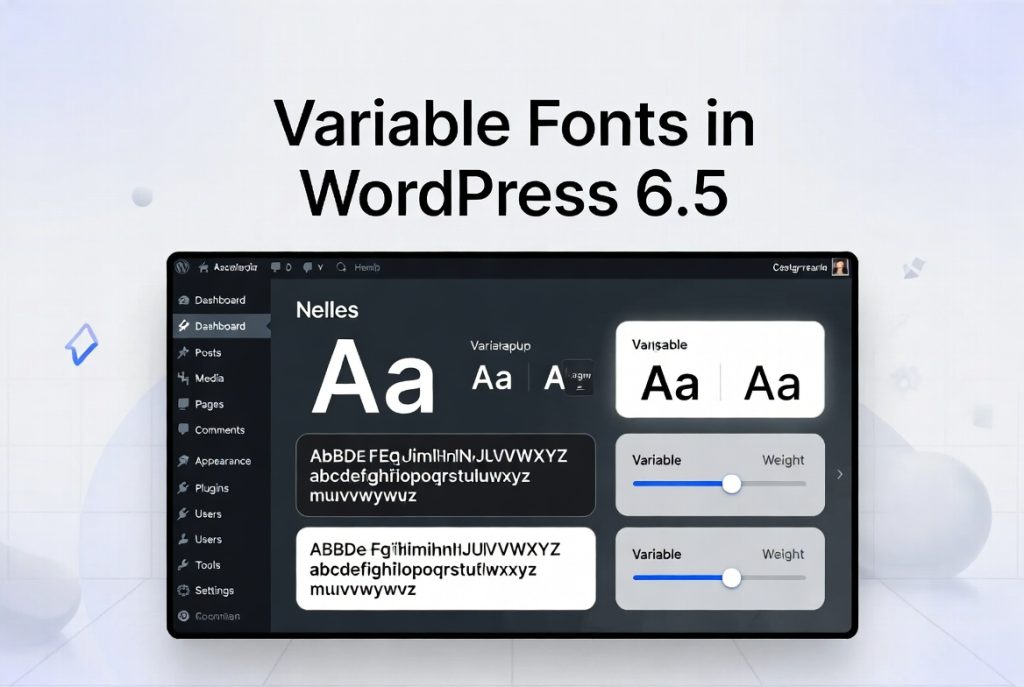
Typography is the soul of web design. Long before a visitor reads a single word on your page, they have already formed an impression based on the way your text looks — the weight of your headings, the rhythm of your body copy, the subtle interplay between font size and line spacing. Typography communicates mood, establishes hierarchy, and either draws users in or pushes them away. It is, in every meaningful sense, the foundation upon which great web design is built.
For most of the web's history, typographic flexibility has been a casualty of performance constraints. Web designers who wanted expressive, varied typography had two options: use a handful of web-safe fonts that came pre-installed on operating systems, or load multiple font files for each variant they needed — one file for Regular, one for Bold, one for Italic, one for Bold Italic, and so on. Every additional font file meant an additional HTTP request, and additional HTTP requests meant slower page loads. The tension between design ambition and performance pragmatism was a constant creative friction.
Variable fonts changed everything. Introduced as part of the OpenType specification in 2016 and now supported by every modern browser, variable fonts pack an entire family of type variations into a single, efficient file. A single variable font file can contain not just Regular and Bold, but every point on a continuous spectrum of weights, widths, slants, optical sizes, and custom axes defined by the type designer. The typographic possibilities have expanded enormously, and the performance cost of typographic richness has dropped dramatically.
With the release of WordPress 6.5, taking full advantage of variable fonts became easier than ever. The new Font Library — a centralized, intuitive interface built directly into the WordPress Site Editor — democratizes advanced font management for developers and non-developers alike. Whether you are a seasoned PHP developer building custom block themes, or a solo blogger customizing your site without touching a line of code, the Font Library gives you unprecedented control over your site's typography.
This comprehensive guide covers everything you need to know about variable fonts and how to use them in WordPress. We begin with the foundational concepts — what variable fonts are and why they matter — then move through practical implementation using the WordPress Font Library, advanced developer techniques for registering custom font collections, performance optimization strategies, troubleshooting common issues, and a forward-looking perspective on where web typography is heading next. By the end, you will have all the knowledge you need to transform your site's typography from ordinary to extraordinary.
| ✦ What You Will Learn
This guide covers: variable font fundamentals, WordPress Font Library setup, adding Google Fonts and custom fonts, applying fonts to blocks and elements, registering font collections via PHP and JSON, performance optimization, troubleshooting, and advanced use cases. |

What Are Variable Fonts? A Deep Dive
To understand why variable fonts represent such a meaningful advance in web typography, it helps to understand the technical architecture that makes them possible — and how they differ from the traditional font files that preceded them.
Traditional Font Files: The Old Model
In the traditional model of font delivery for the web, each stylistic variant of a typeface — Regular, Bold, Italic, Bold Italic, Light, Light Italic, Black, and so on — is stored in a separate font file. If a designer wanted to use a typeface with five weights across two styles (normal and italic), that required loading ten separate font files. Each file could range from 30 to 150 kilobytes or more, and each required its own HTTP request.
The performance implications were severe. Users on slower connections could experience significant delays as the browser requested and downloaded each font file before rendering styled text. To manage this, developers often employed techniques like subsetting (removing unused characters from font files) and selective loading (only loading the weights and styles actually used on a given page). But these workarounds added development complexity without fully solving the fundamental problem.
The OpenType Variable Font Specification
Variable fonts, formally known as OpenType Font Variations (introduced in OpenType 1.8 in September 2016), represent a fundamentally different approach. Rather than storing each style variant as a discrete, static snapshot of a font's design, a variable font encodes the entire design space — the full range of variation — mathematically. The file describes not just one appearance of the typeface, but a continuous spectrum of appearances, with the rendering engine interpolating between defined design extremes in real time.
The axes of variation available in a variable font are defined by the type designer. The OpenType specification includes five registered axes with standardized four-letter tags that browsers and rendering engines understand directly: weight (wght), width (wdth), italic (ital), slant (slnt), and optical size (opsz). Beyond these registered axes, type designers can define any number of custom axes — from grade (grde) to x-height (xhgt) to practically any design parameter the designer chooses to expose.
Understanding Variation Axes
| wght (Weight) | Controls stroke thickness. Ranges from Thin (100) to Black (900). Replaces multiple weight-specific font files. |
| wdth (Width) | Controls letter spacing/condensation. 100 = normal, <100 = condensed, >100 = expanded. |
| ital (Italic) | Binary axis (0 = upright, 1 = italic) or continuous for cursive interpolation. |
| slnt (Slant) | Controls oblique angle in degrees. Negative values slant to the right (typical for oblique fonts). |
| opsz (Optical Size) | Adjusts letterform details for different display sizes — more detail at large sizes, simplified at small. |
| Custom Axes | Type designers can expose any design parameter: x-height, serif length, ink contrast, and more. |
The practical result of this architecture is that a single variable font file can replace an entire font family. Inter, one of the most popular variable fonts for user interface design, packs its full weight range from 100 (Thin) to 900 (Black) into a single file. Recursive, a playful variable font designed by Stephen Nixon, includes axes for weight, slant, casual-to-formal expression, and monospace-to-proportional width — providing an enormous design space in a single file.
Performance Benefits: The Numbers
The performance case for variable fonts is compelling. Loading a traditional font family across five weights and two styles (normal and italic) could easily require 1–2 MB of font data across ten HTTP requests. The equivalent variable font typically weighs 150–400 KB in a single file — a reduction in both file weight and request count that translates directly into faster page load times, lower Time to First Contentful Paint (FCP), and improved Core Web Vitals scores.
Of course, if you only need one or two weights from a family, a targeted subset of a static font may still be smaller than the full variable font file. The performance advantage of variable fonts is most pronounced when you need significant typographic variety — multiple weights, optical adjustments, or custom styling across different viewport sizes. For sites that embrace responsive typography (adjusting font weight or width based on screen size using CSS clamp() and viewport units), variable fonts become essentially mandatory from a performance perspective.
Browser and Device Support in 2025
As of 2025, variable font support is effectively universal among modern web browsers. Chrome, Firefox, Safari, Edge, and Opera all support the OpenType variable font specification fully. The only notable exceptions are Internet Explorer (all versions) and very old versions of other browsers — but these collectively represent less than 0.5% of global web traffic. For the vast majority of sites, variable fonts can be deployed without any fallback concerns for modern users, though graceful degradation for older browsers is always a good practice.
The WordPress Font Library: A Game Changer
WordPress 6.5, released in April 2024, introduced the Font Library — one of the most significant additions to the Site Editor since its initial launch. Before the Font Library, managing custom fonts in WordPress required either installing a dedicated plugin, manually enqueuing font files using PHP in your theme's functions.php, or modifying theme.json to register font families. None of these approaches were particularly user-friendly for non-developers.
The Font Library changes the paradigm by bringing font management into the visual editing interface, making it as accessible and intuitive as managing images in the Media Library. It is, in essence, a typographic command center built into the heart of WordPress.
What the Font Library Enables
- Install fonts directly from Google Fonts without leaving the WordPress editor — no Google Fonts plugin required
- Upload custom font files (.ttf, .otf, .woff, .woff2) from your local machine directly to your WordPress media library
- Manage all installed fonts from a single interface, with clear visibility of which fonts are active for which themes
- Enable or disable individual font faces within a font family, giving you precise control over which weights and styles are loaded
- Apply fonts to specific site elements (headings, body text, captions) or to individual blocks within the Site Editor
- Register entire font collections for consistent, scalable typography management across large or complex sites
Font Library vs. Previous Approaches
| Approach | Ease of Use | Developer Required | Variable Font Support | Performance Control |
| Font Library (WP 6.5+) | ⭐⭐⭐⭐⭐ | No | Full | High |
| Google Fonts Plugin | ⭐⭐⭐⭐ | No | Partial | Medium |
| functions.php Enqueue | ⭐⭐ | Yes | Full | High |
| theme.json Registration | ⭐⭐⭐ | Yes | Full | High |
| @font-face CSS | ⭐⭐ | Yes | Full | Medium |
Requirements and Compatibility
The Font Library requires WordPress 6.5 or later and works best with block themes (themes built using the Full Site Editor architecture). If you are using a classic PHP theme, some Font Library features may not be available or may require additional theme support declarations. For full Font Library functionality — including the ability to apply fonts directly to blocks and elements from within the editor — a block theme is strongly recommended.
| ⚠ Classic Theme Compatibility Note
The Font Library is optimized for block themes. Classic themes may not support the direct application of fonts via the Site Editor. If you are on a classic theme, consider migrating to a block theme like Twenty Twenty-Four to unlock the full Font Library experience. |
Step-by-Step: Accessing and Using the Font Library
Now that we understand what the Font Library is and why it matters, let's walk through exactly how to access and use it. The following steps assume you are running WordPress 6.5 or later with a block theme activated.
Accessing the Font Library
- Log in to your WordPress admin dashboard.
- Navigate to Appearance > Editor. This opens the Full Site Editor (FSE).
- In the left-hand panel, locate and click the Styles icon (it looks like two overlapping circles — the yin-yang-style icon).
- Click the pencil (Edit) icon to open the global styles editing panel.
- In the right-hand panel that appears, click Typography. This expands the typography controls for your site.
- At the top of the Typography panel, you will see a small icon that looks like a font management toggle. Click this to open the Font Library modal.
| 💡 Quick Access Tip
You can also access font settings for individual blocks by selecting any block in the Site Editor, opening its sidebar settings panel, and navigating to the Typography section. Individual block font settings use the same font pool managed by the Font Library. |
Installing Fonts from Google Fonts
The Font Library includes a built-in connection to Google Fonts, allowing you to browse, preview, and install any of the 1,500+ fonts in the Google Fonts catalog directly within the WordPress editor. This is a significant convenience: fonts installed through this interface are self-hosted on your WordPress server, which has important privacy implications (particularly for GDPR compliance, as the font files are served from your own domain rather than from Google's CDN, preventing Google from collecting visitor IP addresses through font requests).
- Within the Font Library modal, click the Install Fonts tab.
- Use the search field to find the font you want. You can search by name (e.g., "Inter", "Playfair Display") or browse by category (Serif, Sans-serif, Monospace, Display, Handwriting).
- Select the font family you want to install. A panel will expand showing all available font faces (weights and styles) within that family.
- Check the boxes next to the specific font faces you want to install. For variable fonts, you will typically see a single entry labeled with the weight range (e.g., "100..900") — select this to install the full variable font.
- Click the Install button. WordPress will download the font files from Google's servers and store them in your WordPress uploads directory, making them fully self-hosted going forward.
- Once installation is complete, the font will appear in your installed fonts list and be immediately available for application across your site.
Uploading Custom Font Files
For custom or commercial fonts that you have licensed separately — or for variable fonts not available through Google Fonts — the Font Library allows you to upload font files directly from your computer. This is particularly valuable for teams using a brand's proprietary typeface, or for designers who have licensed premium variable fonts from type foundries.
- In the Font Library modal, click the Upload tab (or the Upload Font option within Library).
- Click the Upload Font Files button. A file picker dialog will open.
- Select your font files. The Font Library accepts .ttf, .otf, .woff, and .woff2 formats. For variable fonts, the .woff2 format is strongly recommended for web use due to its superior compression.
- WordPress will automatically detect metadata from the font file — family name, weight, style — and populate the fields accordingly. Review these values and correct them if needed.
- For variable fonts, manually set the font-weight range to reflect the full weight axis supported by the font (e.g., 100 900 for a font supporting the full weight spectrum).
- Click the Install button to complete the upload. The font is now stored in your media library and available throughout the editor.
Applying Fonts to Site Elements
With your fonts installed, the next step is applying them to specific elements of your site. The Font Library integrates directly with WordPress's global styles system, allowing you to set fonts at both the global (site-wide) level and at the individual block level.
Applying Fonts Globally via Styles
- Return to Appearance > Editor > Styles > Edit.
- Click Typography in the right-hand panel.
- You will see typography controls for Text (body copy), Links, and Headings — at minimum.
- Click on any element (e.g., Headings) to expand its typography controls.
- Under Font, click the font family selector dropdown and choose from your installed fonts.
- Adjust additional properties as needed: font size, line height, letter spacing, and font weight. For variable fonts, the weight slider will give you access to the full weight axis rather than discrete weight options.
- Save your styles. The font change is applied site-wide to all instances of that element type.
Applying Fonts to Individual Blocks
For finer-grained control, you can apply different fonts to specific blocks within a page or template. This is useful for creating typographic contrast — for example, using a geometric sans-serif for body copy globally but applying a decorative display font to a specific hero section heading.
- In the Site Editor, select the block you want to style.
- Open the block's settings panel in the right sidebar.
- Navigate to the Typography section within the block settings.
- Use the Font Family selector to choose your variable font.
- Adjust weight, size, and other typographic properties. Changes apply only to this specific block instance.
Advanced: CSS and Variable Font Axes
While the Font Library provides a visual interface for basic font management, unlocking the full power of variable fonts — particularly their custom axes and the ability to create responsive, viewport-aware typography — requires working with CSS directly. This section is aimed at developers and designers comfortable with writing CSS.
Using font-variation-settings in CSS
The primary CSS property for controlling variable font axes is font-variation-settings. This property accepts one or more axis tags and values as a comma-separated list:
| /* Basic weight and width control */
h1 { font-family: 'Your Variable Font', sans-serif; font-variation-settings: 'wght' 750, 'wdth' 85; }
/* Using the optical size axis */ .display-heading { font-variation-settings: 'wght' 900, 'opsz' 72; }
/* Custom axis (e.g., casual axis in Recursive) */ .casual-text { font-variation-settings: 'wght' 400, 'CASL' 1; } |
| ⚠ Important: font-variation-settings vs. font-weight
When using variable fonts, prefer using the standard CSS font-weight property for weight control whenever possible. Use font-variation-settings only for axes that do not have a standard CSS property. This ensures better browser optimization and animation performance. Reserve font-variation-settings for custom axes and non-standard registered axes. |
Responsive Typography with CSS clamp()
One of the most powerful applications of variable fonts is fluid, responsive typography — text that smoothly scales in weight, width, or size based on the viewport dimensions, without discrete breakpoints. The CSS clamp() function, combined with variable font axes, makes this elegantly achievable.
| /* Fluid font size that scales from 1rem (mobile) to 2rem (desktop) */
h1 { font-size: clamp(1rem, 2.5vw + 0.5rem, 2rem); }
/* Fluid weight that increases from 400 to 700 as viewport grows */ body { font-weight: clamp(400, 400 + (700 - 400) * ((100vw - 320px) / (1440px - 320px)), 700); }
/* Alternatively, using CSS custom properties for cleaner syntax */ :root { --fluid-weight: clamp(400, 400 + 300 * ((100vw - 320px) / 1120), 700); }
body { font-weight: var(--fluid-weight); } |
Animating Variable Font Axes
Variable font axes are fully animatable using CSS transitions and animations, opening up creative typographic effects that were impossible with static fonts. Weight morphing, width transitions, and custom axis animations can add subtle dynamism to headings, call-to-action elements, and interactive UI components.
| /* Smooth weight transition on hover */
.animated-heading { font-weight: 400; transition: font-weight 0.4s ease; }
.animated-heading:hover { font-weight: 800; }
/* Pulsing weight animation */ @keyframes weightPulse { 0%, 100% { font-weight: 300; } 50% { font-weight: 800; } }
.pulsing-text { animation: weightPulse 2s ease-in-out infinite; } |
Developer's Guide: Registering Custom Font Collections
For developers building WordPress themes or managing sites with complex typographic requirements, the Font Library's API for registering custom font collections provides a powerful mechanism for codifying typography at the infrastructure level. This approach is particularly valuable for design systems that need to be consistently applied across many pages, or for agencies maintaining typography standards across multiple client sites.
Registering via PHP (functions.php)
The wp_register_font_collection() function, introduced in WordPress 6.5, allows developers to register custom font collections programmatically. Place the following code in your theme's functions.php or in a site-specific plugin:
| <?php
function mytheme_register_font_collection() { wp_register_font_collection( 'mytheme-collection', array( 'name' => __( 'My Theme Fonts', 'mytheme' ), 'description' => __( 'Curated fonts for My Theme.', 'mytheme' ), 'font_families' => array( array( 'fontFamily' => 'Inter Variable', 'slug' => 'inter-variable', 'name' => 'Inter Variable', 'fontFace' => array( array( 'src' => get_template_directory_uri() . '/assets/fonts/inter.woff2', 'fontWeight' => '100 900', 'fontStyle' => 'normal', 'fontDisplay'=> 'swap', ), ), ), // Add more font families here ), ) ); } add_action( 'init', 'mytheme_register_font_collection' ); |
Key parameters in this registration call include the collection slug (a unique identifier used internally), the collection name and description (shown in the Font Library UI), and the font_families array, which contains one entry per font family. Each font face definition specifies the source file path, the weight range (expressed as '100 900' for a full-range variable font), the style (normal or italic), and the font-display strategy.
Registering via JSON
For larger font collections or for teams that prefer to manage font metadata outside of PHP files, the JSON registration method offers a clean, maintainable alternative. Create a JSON file that describes your font collection, then link it to WordPress using the wp_register_font_collection() function with a $data_json_file parameter.
| // fonts.json (stored in your theme's assets directory)
{ "fontFamilies": [ { "fontFamily": "Recursive Variable", "slug": "recursive-variable", "name": "Recursive Variable", "fontFace": [ { "src": "assets/fonts/recursive.woff2", "fontWeight": "300 1000", "fontStyle": "oblique -15deg 0deg", "fontDisplay": "swap" } ], "categories": ["sans-serif"], "tags": ["variable", "display", "code"] } ] } |
| // functions.php — linking the JSON file
function mytheme_register_json_font_collection() { wp_register_font_collection( 'mytheme-json-collection', get_template_directory() . '/assets/fonts/fonts.json' ); } add_action( 'init', 'mytheme_register_json_font_collection' ); |
Registering Fonts in theme.json
For theme developers who prefer the declarative configuration approach, font families can also be registered directly in the theme's theme.json file. This method is version-controlled alongside the rest of the theme code and requires no PHP functions:
| // theme.json
{ "version": 3, "settings": { "typography": { "fontFamilies": [ { "fontFamily": "'Inter Variable', sans-serif", "slug": "inter-variable", "name": "Inter Variable", "fontFace": [ { "src": [ "file:./assets/fonts/inter-variable.woff2" ], "fontWeight": "100 900", "fontStyle": "normal", "fontDisplay": "swap" } ] } ] } } } |
Performance Optimization for Variable Fonts
Variable fonts offer significant performance advantages over traditional multi-file font stacks, but realizing those advantages requires thoughtful implementation. Poorly optimized font delivery can undermine even the best variable font choices. This section covers the most impactful techniques for ensuring your variable fonts load quickly and render beautifully.
Choose WOFF2 Format
The WOFF2 (Web Open Font Format 2) is the gold standard for web font delivery. It offers the best compression ratio of any web font format — typically 30% smaller than WOFF1 and 50% smaller than TTF — and is supported by all modern browsers. When uploading or hosting variable fonts, always use the .woff2 variant. If your variable font is only available as a .ttf or .otf file, convert it to WOFF2 using a tool like Google's woff2 compressor before deploying to production.
Subset Your Fonts
Variable font files tend to be larger than individual static font files because they must encode the full design space. For sites targeting a specific language audience, subsetting — reducing the font file to only the characters actually needed for your language — can dramatically reduce file size. For an English-language site, a Latin subset removes thousands of characters covering Cyrillic, Greek, Chinese, Japanese, Arabic, and other scripts that will never appear on the site. Tools like fonttools (pyftsubset), Glyphhanger, and online services like Font Squirrel's webfont generator can produce language-specific subsets.
Use font-display: swap
The font-display CSS descriptor controls how a font is rendered while it is loading. Setting it to swap tells the browser to immediately display text using a fallback system font, then swap in the custom font once it has loaded. This prevents the dreaded FOIT (Flash of Invisible Text) — where text is invisible while the font loads — while accepting the minor FOUT (Flash of Unstyled Text) when the custom font swaps in. For most sites, swap is the optimal choice for balancing performance metrics and visual quality.
Disable Unused Font Faces in Font Library
The Font Library provides fine-grained control over which font faces (weight/style combinations) are loaded on your site. Even if you have installed a font family with many faces, you can disable the ones you are not actively using, preventing WordPress from including them in the site's CSS. This is particularly important for static font families with many variants — but even for variable fonts, if your design only uses the normal (non-italic) axis, disabling italic faces reduces the overall font payload.
Preload Critical Fonts
For above-the-fold text that is visible immediately on page load, consider preloading the font file using a <link rel="preload"> tag. This instructs the browser to fetch the font file early in the page loading process, before the stylesheet has been fully parsed, minimizing the chance that text will render with a fallback font. In WordPress, you can add font preload hints using the wp_enqueue_scripts hook or by adding them to the theme's header template.
| // Adding font preload in functions.php
function mytheme_preload_fonts() { echo '<link rel="preload" href="' . get_template_directory_uri() . '/assets/fonts/inter-variable.woff2"' . ' as="font" type="font/woff2" crossorigin="anonymous">'; } add_action( 'wp_head', 'mytheme_preload_fonts', 1 ); |
| WOFF2 Format | Best compression, use for all web deployments |
| Subsetting | Remove unused character sets to reduce file size |
| font-display: swap | Prevent invisible text during font loading |
| Disable Unused Faces | Uncheck unused weights in Font Library to skip loading |
| Preload Critical Fonts | Use <link rel=preload> for hero/header fonts |
| Self-Host Fonts | Avoid third-party CDN requests for GDPR and performance |
8. Troubleshooting Common Issues
Even with the improved tooling that WordPress 6.5 provides, working with variable fonts can occasionally surface challenges. Here is a systematic guide to diagnosing and resolving the most common issues.
Font Not Appearing in the Editor
If an installed font is not appearing in the Font Family selector within the Site Editor, first verify that the installation completed successfully by checking the Font Library modal and confirming the font appears in the Library tab. If it appears there but not in the editor, try clearing your browser cache and reloading the editor. If the font was registered via PHP or theme.json, ensure there are no syntax errors in your code and that the file path to the font asset is correct and accessible.
Variable Font Weight Range Not Working
If the full weight range of a variable font is not accessible — for example, the weight slider in the editor stops at 400 or 700 rather than extending to 100–900 — the font-weight metadata for the font face may be set to a discrete value rather than a range. In the Font Library, edit the font face entry and ensure the font-weight field contains a range in the format '100 900' (with a space between the minimum and maximum values, not a hyphen). If you registered the font via PHP, verify the fontWeight parameter in your wp_register_font_collection() call uses the space-separated range format.
Font Loading Delays and FOUT
Noticeable text reflow or a flash of unstyled text during page load is typically caused by font files loading after initial render. Address this by: (1) enabling font-display: swap in your font face declarations to ensure text is visible immediately with fallback fonts; (2) preloading the font file as described in Section 7.5; and (3) optionally specifying size-adjust, ascent-override, descent-override, and line-gap-override properties on your @font-face declaration to minimize layout shift when the custom font replaces the fallback.
Fonts Rendering Incorrectly in Older Browsers
While modern browser support for variable fonts is essentially universal, if your site needs to support older browsers (corporate environments sometimes mandate older versions of Chrome or Edge), variable fonts will fall back to the browser's default font. Implement a graceful fallback by ensuring your font-family stack includes appropriate system fallbacks: font-family: 'Your Variable Font', system-ui, -apple-system, BlinkMacSystemFont, 'Segoe UI', sans-serif. Optionally, use a @supports feature query to apply variable font settings only in browsers that support them.
Classic Theme Compatibility
The Font Library is fully supported only in block themes. If you are using a classic PHP theme, you will be able to install fonts through the Font Library interface, but applying them to site elements through the visual editor will be limited or unavailable. For classic theme users, the most practical approach is to reference installed fonts in the theme's style.css using @font-face declarations that point to the font files stored in your WordPress uploads directory (accessible at wp-content/uploads/fonts/).
Recommended Variable Fonts for WordPress Sites in 2025
Choosing the right variable font is as important as knowing how to implement it. Here is a curated selection of variable fonts that consistently deliver excellent results for WordPress sites across different use cases and design aesthetics.
| Font | Category | Weight Range | Best For | Available via |
| Inter | Sans-serif | 100–900 | UI, body text, dashboards | Google Fonts |
| Playfair Display | Serif | 400–900 | Editorial, luxury brands | Google Fonts |
| Recursive | Sans-serif | 300–1000 | Creative, tech, playful | Google Fonts |
| Source Serif 4 | Serif | 200–900 | Long-form reading | Google Fonts |
| Manrope | Sans-serif | 200–800 | Modern apps, SaaS | Google Fonts |
| Fraunces | Serif | 100–900 | Display, fashion, art | Google Fonts |
| Cabinet Grotesk | Sans-serif | 100–900 | Startups, design-led | Fontshare (free) |
| Satoshi | Sans-serif | 300–900 | Clean, modern brands | Fontshare (free) |
The Future of Typography in WordPress
The introduction of the Font Library in WordPress 6.5 is not an endpoint — it is the beginning of a more ambitious journey toward typographic maturity in the world's most widely used content management system. Several exciting developments are on the horizon that will further expand what is possible with fonts in WordPress.
Color Fonts (COLRv1)
Color fonts — OpenType fonts that include built-in color information, allowing individual glyphs to render in multiple colors without CSS — are gaining browser support and beginning to appear in premium font libraries. WordPress's Font Library infrastructure is well-positioned to support color fonts as they become more mainstream, and we can expect to see native editor support for color font properties in future WordPress releases.
Expanded API and Third-Party Collections
The font collection registration API introduced in WordPress 6.5 creates a foundation for third-party font providers — beyond Google Fonts — to integrate natively with the WordPress Font Library. Type foundries, font marketplaces, and subscription services could offer WordPress plugins that surface their entire catalogs directly within the Font Library interface. This would bring the richness of the commercial type market into the WordPress editing experience without requiring developers to manually host and manage font files.
AI-Assisted Typography
As AI capabilities become more deeply integrated into WordPress through plugins and future core features, we can anticipate AI-assisted typography tools that analyze content context and suggest optimal font pairings, weight and size settings, and responsive typography configurations. Systems that can examine a site's brand guidelines and automatically configure typography variables to match are not far from practical reality.
Deeper Gutenberg Integration
The Gutenberg block editor continues its rapid evolution, and future versions are expected to offer even more granular typographic controls directly within block settings — including direct manipulation of custom variable font axes through visual sliders, fluid typography configuration through a GUI rather than manual CSS, and per-block responsive typography breakpoints. The distance between design intent and implementation is shrinking with each WordPress release.
Conclusion: Embrace the Typographic Freedom
Variable fonts represent one of the most significant advances in web typography since the introduction of @font-face support. They dissolve the long-standing tension between typographic expressiveness and performance, offering designers and developers an unprecedented palette of stylistic possibilities without the payload cost of multiple font files. Combined with modern CSS capabilities like clamp(), fluid typography, and axis animation, variable fonts enable a new generation of responsive, dynamic, and beautifully crafted type experiences on the web.
WordPress has historically lagged behind in making advanced typographic tools accessible to non-technical users. The Font Library, introduced in WordPress 6.5, changes that fundamentally. Managing, installing, and applying variable fonts is now as approachable as managing images in the Media Library. The barrier between typographic ambition and typographic execution has never been lower.
Whether you are building a design-led startup site that needs a distinctive visual identity, a corporate WordPress implementation where brand consistency is paramount, or a personal blog where you simply want your prose to look as good as it reads — variable fonts and the WordPress Font Library give you the tools to achieve it. The techniques in this guide, from basic Font Library usage through advanced PHP font collection registration and CSS animation, represent the full spectrum of what is currently possible.
Start with the fundamentals: access the Font Library, install a variable font from Google Fonts, and apply it to your headings and body text. Notice how the smooth weight control feels compared to discrete weight options. Then, as your confidence grows, explore fluid typography with clamp(), experiment with axis animations for interactive elements, and consider registering your own font collection for scalable, design-system-level typography management. The typographic freedom is yours — all that remains is to use it.
Variable Fonts in WordPress — Quick Reference Summary
| WordPress Requirement | WordPress 6.5 or later with a block theme |
| Accessing Font Library | Appearance > Editor > Styles > Edit > Typography > Manage Fonts |
| Install from Google Fonts | Font Library > Install Fonts tab > Search and select |
| Upload Custom Fonts | Font Library > Upload tab > Select .woff2 file |
| PHP Registration Function | wp_register_font_collection() in functions.php |
| theme.json Registration | settings > typography > fontFamilies array |
| Variable Weight in CSS | font-weight: 100 900 (range) or font-variation-settings |
| Recommended Format | WOFF2 for best compression and compatibility |
| Performance Best Practice | font-display: swap + preload critical fonts |
| Troubleshooting Classic Themes | Use @font-face in style.css referencing uploaded files |
FAQ
1. What are variable fonts?
Variable fonts are a single font file that contains an entire family of styles, including weight, width, italic, slant, and optical size, allowing one file to replace multiple traditional font files.
2. Why are variable fonts important for WordPress?
They provide flexible, responsive typography without adding multiple font files, improving site performance and giving designers more creative control over text appearance.
3. What is the WordPress Font Library?
The Font Library, introduced in WordPress 6.5, allows users to install Google Fonts, upload custom fonts, manage font collections, and apply fonts to blocks or site elements directly from the visual editor.
4. How do I install Google Fonts via the Font Library?
Go to WordPress Editor → Styles → Typography → Manage Fonts → Install Fonts tab → search for your font → select variations → click “Install”.
5. How do I upload custom fonts?
Open Font Library → Upload tab → select .woff2 (recommended) or other supported formats → verify font metadata → click “Install”.
6. What are the benefits of variable fonts over traditional fonts?
They reduce file size and HTTP requests, allow responsive typographic adjustments, and can be applied globally or per block for more design flexibility.
7. How can I optimize font performance?
Use WOFF2 format, subset only needed characters, apply font-display: swap, disable unused font weights/styles, and preload critical fonts.
8. How do I apply variable fonts in CSS?
Use font-weight or font-variation-settings for axis control, use clamp() for responsive typography, and CSS transitions or keyframes for animating axes.
9. Are variable fonts supported in all browsers?
Most modern browsers fully support variable fonts. Only older browsers like Internet Explorer do not, representing less than 0.5% of global traffic.
10. Are all WordPress themes compatible with the Font Library?
The Font Library works best with block themes. Classic PHP themes can upload fonts, but editing and applying them via the visual editor is limited.
Tinggalkan Balasan