
How to Duplicate a Page in WordPress With and Without Plugins: The Complete 2026 Guide
3 hari ago
In the fast-paced world of website management, efficiency is everything. Whether you're building multiple landing pages, expanding an e-commerce store with similar product descriptions, creating consistent blog templates, or helping clients manage content more easily, duplicating pages, posts, and custom post types in WordPress can save hours of repetitive work.
WordPress remains one of the most popular content management systems in 2026, powering over 40% of the web. Yet, even after years of updates to the Gutenberg block editor and core features, the platform still does not include a built-in one-click "Duplicate" button for pages or posts. This limitation forces users to rely on plugins, page builders, manual methods, or custom code.
In this extensive guide, we'll explore every practical way to duplicate content in WordPress — from the simplest plugin solutions to advanced no-plugin techniques and builder-specific workflows. We'll cover pros, cons, step-by-step instructions, troubleshooting tips, best practices for SEO and performance, and even code-based methods for developers.
By the end, you'll have a full toolkit to clone pages quickly while preserving layouts, images, metadata, custom fields, and more. Let's dive in.
Why You Need to Duplicate Pages in WordPress
Duplicating content serves many real-world purposes:
- Speed up content creation: Reuse proven layouts for landing pages, about pages, or service templates without starting from scratch.
- E-commerce efficiency: Clone WooCommerce products while adjusting prices, SKUs, or variations.
- Team collaboration: Provide clients or team members with pre-filled drafts that include metadata, SEO settings, and featured images.
- A/B testing and experimentation: Create variations of high-performing pages to test headlines, calls-to-action, or designs.
- Scaling websites: Rapidly expand blogs, portfolios, or membership sites with consistent structures.
- Backup and versioning: Keep safe copies before major edits.
Without a proper duplication method, you'd waste time manually copying text (which misses images and settings) or rebuilding blocks one by one. The right approach can reduce creation time from 30–60 minutes to under 2 minutes per page.
Common challenges include:
- Missing images, custom CSS, or Elementor/ block settings.
- Duplicate content SEO penalties if permalinks aren't updated.
- Incompatibility with certain page builders or custom post types.
- Performance impact from heavy plugins.
We'll address all these throughout the guide.
Method 1: Duplicate a Page in WordPress with a Plugin (Fastest and Most Complete)
Plugins remain the most popular and reliable solution in 2026 because they copy almost everything: content, featured images, taxonomies, custom fields, SEO metadata, page templates, and more.
Top Recommended Duplicate Plugins in 2026
- Duplicate Page (by mndpsingh287) — Lightweight, simple, and highly rated with millions of active installs. Ideal for beginners who want speed without complexity.
- Yoast Duplicate Post — More advanced features, including bulk cloning, selective copying, "Rewrite & Republish" workflow, and excellent integration with Yoast SEO. Great for power users and multi-author sites.
- Other solid options: WP Duplicate Page, Duplicate Post (older forks), or builder-specific add-ons.
Using the Duplicate Page Plugin (Recommended for Most Users)
Step-by-step instructions:
- Log into your WordPress dashboard.
- Navigate to Plugins > Add New.
- Search for "Duplicate Page".
- Install and activate the plugin by mndpsingh287 (ensure you choose the one with over 3 million installs for reliability).
- (Optional but recommended) Go to Settings > Duplicate Page to configure defaults. You can choose the default status of duplicates (Draft is safest), select which editors to support, and set a title suffix like " – Copy".
- Go to Pages > All Pages (or Posts > All Posts, or your custom post type list).
- Hover over the page you want to duplicate. You'll now see a new link: Duplicate This.
- Click it. WordPress will instantly create a new draft copy. The screen may reload, and the duplicate will appear in your list with a title like "Original Page Title – Copy" or similar.
- Click Edit on the new draft.
- Update the title, permalink (slug), content, featured image, categories/tags, custom fields, and any page settings as needed.
- Click Save Draft or Publish when ready.
This method works seamlessly for standard pages, posts, and most custom post types (including WooCommerce products in many cases).
Advantages:
- One-click operation.
- Copies metadata, taxonomies, and post meta automatically.
- Lightweight (minimal impact on site speed).
- Works with Gutenberg and classic editors.
Limitations:
- Free version is basic; some advanced options may require premium upgrades in similar plugins.
- Always review SEO settings after duplication to avoid duplicate content issues.
Using Yoast Duplicate Post for Advanced Control
Yoast Duplicate Post offers more flexibility:
- Install and activate Yoast Duplicate Post from the plugin repository.
- Go to Settings > Duplicate Post to customize what gets copied (title, date, author, comments, taxonomies, custom fields, etc.).
- In the All Pages or All Posts list, hover over an item. You'll see two new options: Clone (creates a published copy if original is published) and New Draft (safest for editing).
- For bulk actions, select multiple items and use the bulk edit dropdown if enabled.
This plugin shines for content teams because it supports "Rewrite & Republish" — perfect for updating live pages without downtime.
Pro Tip: If your site uses WooCommerce, test duplication on a product. Most plugins handle price, inventory, variations, and galleries well, but always verify images and linked files.
Troubleshooting Plugin Issues:
- Conflict with other plugins? Deactivate others temporarily and test.
- Duplicate doesn't appear? Clear cache and check user permissions (must have "edit_posts" capability).
- Custom post types not supported? Ensure the plugin is configured for them or switch to Yoast.
Method 2: Copy a Page in WordPress Without Any Plugin (Gutenberg Block Editor)
For users who prefer minimalism or avoid extra plugins for performance/security reasons, the built-in Gutenberg tools work well for content and layout duplication.
Using "Copy All Content" (Easiest No-Plugin Method)
- Open the page you want to duplicate in the Gutenberg editor.
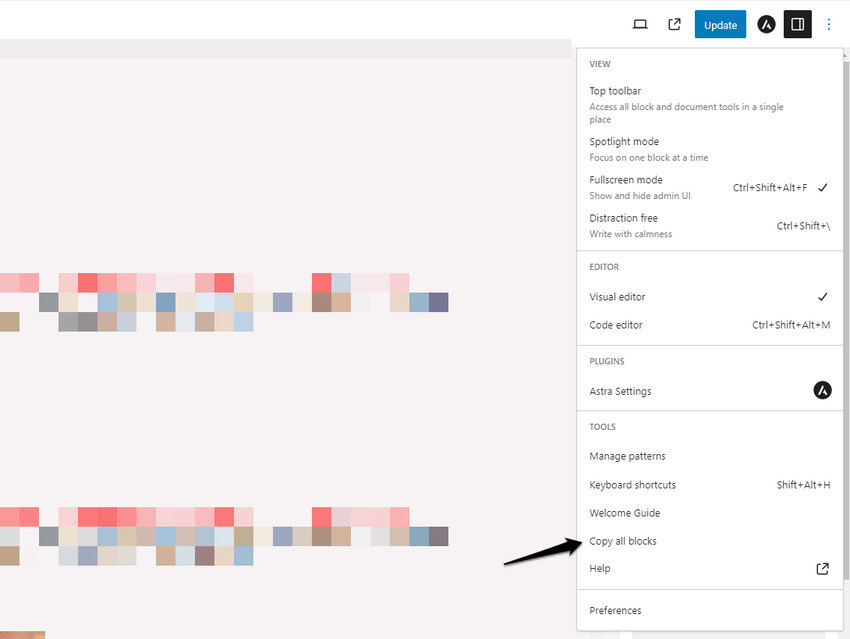
- Click the three vertical dots (⋮) in the top-right corner of the editor screen.
- Select Copy all content (or Copy all blocks in some views).
- Create a new page via Pages > Add New.
- Click anywhere in the empty editor area.
- Press Ctrl + V (Windows) or Cmd + V (Mac) to paste. All blocks, text, images, embeds, and layout elements will transfer.
- Update the title, permalink, featured image, and any page-level settings (template, SEO, etc.).
- Save or publish.
This method copies the visual content and block structure effectively but does not automatically transfer custom fields, taxonomies, or advanced metadata.
Alternative: Code Editor Method for More Precision
- In the original page editor, click the three dots > Code editor.
- Select all content (Ctrl + A) and copy (Ctrl + C).
- Create a new page and switch to Code editor.
- Paste the content (Ctrl + V).
- Switch back to the visual editor to review.
- Make adjustments and publish.
This preserves complex block nesting and custom HTML better in some cases.
Limitations of No-Plugin Methods:
- Page settings, custom fields (ACF, etc.), and SEO data are not copied.
- Elementor or other builder data may not transfer cleanly.
- Media files (images) are referenced but not duplicated — ensure they're in the media library.
- Not ideal for bulk operations or custom post types.
When to Use This Method:
- Occasional duplicates.
- Sites where you want to keep the plugin count low.
- When you only need the block content/layout.
Enhancing Gutenberg Duplication:
- Use Reusable Blocks or Block Patterns for frequently duplicated sections (e.g., hero banners or footers). Save a section, then insert it into new pages.
- In 2026, Gutenberg supports better block styling copy-paste and custom CSS per block, making layout reuse even smoother.
Method 3: Clone a Page in WordPress with Elementor (Page Builder Workflow)
If your site uses Elementor (one of the most popular page builders in 2026), you have powerful built-in tools that don't always require extra plugins.
Primary Method: Save as Template
- Open the page in the Elementor editor.
- Click the upward arrow next to the Update or Publish button (usually bottom-left or top bar).
- Select Save as Template.
- Give the template a clear name (e.g., "Landing Page – Version 1") and choose whether to save it to your Site Library or Cloud Library.
- Click Save.
- Create a new page and edit with Elementor.
- Click the folder icon to open the Template Library.
- Switch to the My Templates tab.
- Find your saved template and click Insert.
- A popup may ask: “Apply the settings of this page too?” Click Apply if you want to import layout, design, and page-level settings (it won't override existing metadata you've added).
- Customize text, images, and content as needed.
- Publish the new page.
Alternative: Right-Click Duplication in Elementor
In newer Elementor versions, you can right-click sections, columns, or widgets and choose duplicate options directly within the editor for faster internal copying.
Using a Plugin with Elementor: Even with Elementor, many users combine it with Duplicate Page or Yoast Duplicate Post for full dashboard-level cloning that includes all Elementor data and WordPress metadata.
Export/Import for Cross-Site Duplication:
- Save as template and export the .json file.
- Import into another site via Elementor's template library. This is excellent for agencies managing multiple client sites.
Elementor Pro Advantages: Pro users get more advanced template kits, global widgets, and theme builder integration, making duplication even more powerful for consistent site-wide designs.
Advanced Methods: Custom Code and Developer Techniques
For plugin-free control or highly customized sites, add a duplication function to your theme's functions.php (preferably in a child theme to avoid update overwrites).
Basic Custom Duplicate Function
Here's a reliable code snippet (always backup your site first):
function rd_duplicate_post_as_draft(){
    global $wpdb;
    if (! ( isset( $_GET['post']) || isset( $_POST['post']) || ( isset($_REQUEST['action']) && 'rd_duplicate_post_as_draft' == $_REQUEST['action'] ) ) ) {
        wp_die('No post to duplicate has been supplied!');
    }

    if ( !isset( $_GET['duplicate_nonce'] ) || !wp_verify_nonce( $_GET['duplicate_nonce'], basename( __FILE__ ) ) )
        return;

    $post_id = (isset($_GET['post']) ? absint( $_GET['post'] ) : absint( $_POST['post'] ));
    $post = get_post( $post_id );

    $current_user = wp_get_current_user();
    $new_post_author = $current_user->ID;

    if (isset( $post ) && $post != null) {

        $args = array(
            'comment_status' => $post->comment_status,
            'ping_status'    => $post->ping_status,
            'post_author'    => $new_post_author,
            'post_content'   => $post->post_content,
            'post_excerpt'   => $post->post_excerpt,
            'post_name'      => $post->post_name,
            'post_parent'    => $post->post_parent,
            'post_password'  => $post->post_password,
            'post_status'    => 'draft',
            'post_title'     => $post->post_title,
            'post_type'      => $post->post_type,
            'to_ping'        => $post->to_ping,
            'menu_order'     => $post->menu_order
        );

        $new_post_id = wp_insert_post( $args );

        // Copy taxonomies
        $taxonomies = get_object_taxonomies($post->post_type);
        foreach ($taxonomies as $taxonomy) {
            $post_terms = wp_get_object_terms($post_id, $taxonomy, array('fields' => 'slugs'));
            wp_set_object_terms($new_post_id, $post_terms, $taxonomy, false);
        }

        // Copy post meta
        $post_meta_infos = $wpdb->get_results("SELECT meta_key, meta_value FROM $wpdb->postmeta WHERE post_id=$post_id");
        if (count($post_meta_infos)!=0) {
            $sql_query = "INSERT INTO $wpdb->postmeta (post_id, meta_key, meta_value) ";
            foreach ($post_meta_infos as $meta_info) {
                $meta_key = $meta_info->meta_key;
                if( $meta_key == '_wp_old_slug' ) continue;
                $meta_value = addslashes($meta_info->meta_value);
                $sql_query_sel[] = "SELECT $new_post_id, '$meta_key', '$meta_value'";
            }
            $sql_query.= implode(" UNION ALL ", $sql_query_sel);
            $wpdb->query($sql_query);
        }

        wp_redirect( admin_url( 'post.php?action=edit&post=' . $new_post_id ) );
        exit;
    } else {
        wp_die('Post creation failed, could not find original post: ' . $post_id);
    }
}
add_action( 'admin_action_rd_duplicate_post_as_draft', 'rd_duplicate_post_as_draft' );

function rd_duplicate_post_link( $actions, $post ) {
    if (current_user_can('edit_posts')) {
        $actions['duplicate'] = '<a href="' . wp_nonce_url('admin.php?action=rd_duplicate_post_as_draft&post=' . $post->ID, basename(__FILE__), 'duplicate_nonce' ) . '" title="Duplicate this item" rel="permalink">Duplicate</a>';
    }
    return $actions;
}
add_filter('post_row_actions', 'rd_duplicate_post_link', 10, 2);
add_filter('page_row_actions', 'rd_duplicate_post_link', 10, 2);
Add this to your child theme's functions.php. It adds a "Duplicate" link to post and page rows. You can extend it to custom post types by adding more filters (e.g., for 'product' in WooCommerce).
Benefits of Custom Code:
- No extra plugin overhead.
- Full control over what gets copied.
- Can be tailored for specific post types or workflows.
Risks:
- Mistakes in functions.php can break your site — always use a staging environment and backup.
- Updates to WordPress core or themes may require maintenance.
Special Cases: Duplicating WooCommerce Products and Custom Post Types
WooCommerce includes a basic Duplicate link on product rows (hover over a product > Duplicate). This copies title, description, price, images, and basic data, but variations and advanced attributes may need manual checks.
For better results:
- Use Duplicate Page or Yoast Duplicate Post (they often support products).
- Or WooCommerce-specific tools like bulk editors or add-ons (e.g., ShopLentor Post Duplicator).
Custom post types (portfolios, events, etc.) are usually handled automatically by good duplication plugins. If not, extend the custom code method with the correct post type slug.
Best Practices for Duplicating Pages
- Always Update SEO Elements: Change titles, meta descriptions, and permalinks immediately to avoid Google penalties for duplicate content. Use tools like Yoast or Rank Math to review.
- Check Images and Media: Duplicates reference existing files. Re-upload or replace if needed for uniqueness.
- Test on Staging First: Especially with custom code or complex builders.
- Performance Considerations: Limit active plugins. Lightweight options like Duplicate Page have minimal impact.
- Permissions and Security: Restrict duplication access for non-admins if needed.
- Version Control: Keep original pages as templates or archives.
- Bulk Duplication: Use Yoast Duplicate Post or custom scripts for large-scale operations.
- Mobile Responsiveness: Always preview duplicates on different devices after editing.
Common Issues and Troubleshooting
- Duplicate appears broken: Clear site cache, browser cache, and check for JavaScript conflicts.
- Missing data: Some builders store settings differently — test with your specific setup.
- Permalink conflicts: WordPress adds numbers automatically; edit the slug manually.
- Elementor not copying styles: Use the template save method or a compatible plugin.
- White screen/error after code addition: Comment out the new function and debug line by line.
Comparison Table: Duplication Methods
| Method | Copies Content/Layout | Copies Metadata/Custom Fields | Bulk Support | Speed | Best For | Plugin Needed? |
|---|---|---|---|---|---|---|
| Duplicate Page Plugin | Yes | Yes | Limited | Very Fast | Everyday use, beginners | Yes |
| Yoast Duplicate Post | Yes | Highly customizable | Yes | Fast | Advanced workflows, SEO | Yes |
| Gutenberg Copy All | Yes | No | No | Fast | Occasional, content-only | No |
| Code Editor Paste | Yes (strong) | Partial | No | Medium | Precision without plugins | No |
| Elementor Templates | Yes (design-focused) | Layout + some settings | No | Fast | Elementor users | Elementor |
| Custom functions.php | Fully customizable | Fully customizable | Possible | Fast | Developers, no-plugin sites | No |
Conclusion
Duplicating pages in WordPress doesn't have to be complicated. In 2026, you have excellent options whether you prefer the simplicity of the Duplicate Page plugin, the advanced control of Yoast Duplicate Post, the no-plugin flexibility of Gutenberg, or the design power of Elementor templates.
For most users, starting with a lightweight plugin like Duplicate Page offers the best balance of speed and completeness. If you manage content frequently or run an e-commerce site, combine tools — use plugins for full clones and builder templates for design consistency.
Whichever method you choose, always prioritize unique content, proper SEO hygiene, and thorough testing. With these techniques, you'll transform repetitive tasks into quick, efficient workflows, freeing up time for creativity and growth.
Ready to streamline your WordPress workflow? Start by installing one of the recommended plugins today and experiment on a test page. If you encounter specific issues with your theme, builder, or custom post types, feel free to provide more details for tailored advice.
Happy duplicating — and may your content creation be faster and more enjoyable than ever!
FAQ (Frequently Asked Questions)
1. Why doesn’t WordPress have a built-in duplicate page feature?
WordPress core focuses on content creation, not duplication workflows. This is why duplication is usually handled by plugins or custom code.
2. What is the easiest way to duplicate a page in WordPress?
Using a plugin like Duplicate Page or Yoast Duplicate Post is the fastest and most complete method.
3. Can I duplicate a WordPress page without a plugin?
Yes. You can use Gutenberg’s “Copy all content” feature or the code editor to manually copy and paste blocks into a new page.
4. Does duplicating a page affect SEO?
It can if you don’t update the title, slug, and meta description. Always modify SEO settings after duplication.
5. Can I duplicate WooCommerce products?
Yes. WooCommerce has a built-in “Duplicate” option, and plugins like Yoast Duplicate Post also support product cloning.
6. Will duplicated pages include images and layout?
Yes, most plugins copy layouts, images, and metadata. Manual methods may require re-checking media and settings.
7. Is it safe to use custom code for duplication?
Yes, but only if added carefully in a child theme and tested on a staging site first.
Tinggalkan Balasan