
How to Clear the WordPress Cache – 5 Proven Methods for 2026
5 hari ago

You’ve just updated a page, edited a post, or made design changes to your WordPress website — but the updates aren’t showing up on the live site. Instead, you’re still seeing the old version. This frustrating issue is almost always caused by caching.
Caching is one of the most important performance features in WordPress. It stores copies of your pages, posts, and assets so they can be served faster to visitors. However, when changes aren’t reflected, it usually means the cached version is being shown instead of the updated content.
In this fully updated 2026 guide, we’ll explain exactly what the WordPress cache is and show you 5 reliable methods to clear it — from the simplest browser fix to advanced server and CDN solutions. We’ll also cover when to use each method and how to prevent similar issues in the future.
Here are the 5 methods we’ll cover:
- Method 1: Clear the Browser Cache
- Method 2: Clear the Cache with a WordPress Plugin
- Method 3: Clear the Cache from Your Firewall
- Method 4: Clear the Cache from Your Web Hosting Account
- Method 5: Clear the Cache Using Your CDN
By the end of this tutorial, you’ll know exactly how to fix cache-related problems quickly and keep your site running smoothly with the latest content always visible.
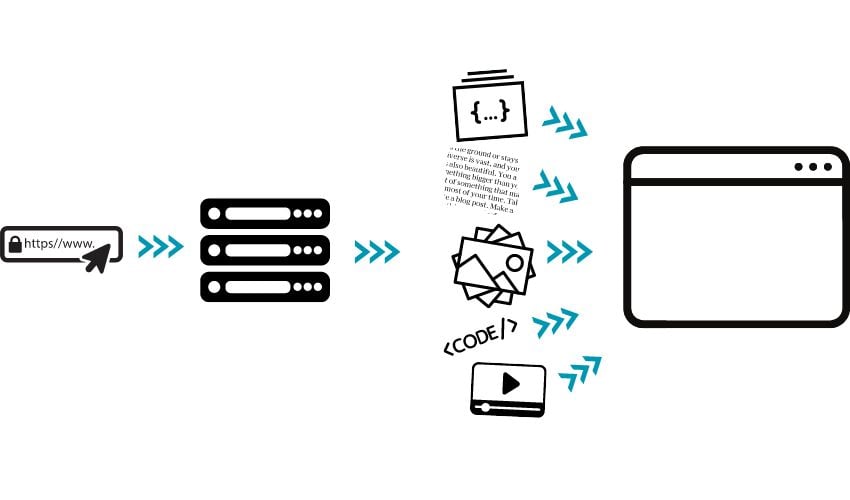
What Is Caching and Why It Matters in WordPress
Understanding the Caching Process Caching is the practice of storing a copy of your web page (or parts of it) in a temporary location so it can be served faster to visitors. Without caching, every request would require the server to process all the dynamic elements — database queries, PHP scripts, images, CSS, JavaScript, and more — before sending the complete page to the browser.
This process is slow and resource-intensive, especially on content-heavy sites. Caching solves this by saving a static version of the page after the first load. Subsequent visitors receive this pre-generated version, dramatically improving loading speed.
Where Caching Happens Caching can occur at multiple levels:
- Browser Cache: The visitor’s browser stores files locally
- WordPress Cache: Plugins create static HTML versions of pages
- Server Cache: Hosting providers cache at the server level (NGINX, Varnish, etc.)
- Firewall/CDN Cache: Security plugins and content delivery networks store copies globally
Why You Need to Clear the Cache While caching is essential for performance, it can cause problems when you make changes:
- New edits to pages or posts don’t appear
- Design updates (themes, CSS) are invisible
- Plugin settings or custom code changes are ignored
- Visitors see outdated content
Clearing the cache forces the system to generate fresh versions of your pages, ensuring everyone sees the latest content.
Common Scenarios Requiring Cache Clearing
- After publishing or editing posts/pages
- When updating themes or plugins
- After making CSS or JavaScript changes
- When troubleshooting display issues
- After installing security or performance plugins
Method 1 – Clear the Browser Cache
When to Use This Method Clear the browser cache first when:
- Changes appear on one device but not another
- You’re the only one seeing old content
- You’re testing updates in preview mode
How to Clear Browser Cache The process is similar across major browsers:
Google Chrome / Edge / Brave
- Click the three-dot menu → Settings
- Go to Privacy and security → Clear browsing data
- Select “Cached images and files”
- Choose time range (Last hour or All time)
- Click “Clear data”
Firefox
- Open Settings → Privacy & Security
- Scroll to Cookies and Site Data
- Click “Clear Data”
- Check “Cached Web Content”
- Click “Clear”
Safari
- Go to Safari → Preferences → Advanced
- Enable “Show Develop menu in menu bar”
- From the Develop menu, choose “Empty Caches”
Pro Tip: Use keyboard shortcuts for faster access:
- Chrome/Edge: Ctrl + Shift + Delete (Windows) or Cmd + Shift + Delete (Mac)
- Firefox: Ctrl + Shift + Delete
After Clearing Refresh your website (Ctrl/Cmd + F5 for hard refresh) to see if the updates appear. If the problem persists, move to the next method.
Method 2 – Clear the Cache with a WordPress Plugin
Recommended Plugins The easiest and most reliable way to manage WordPress cache is with a dedicated performance plugin. Top options in 2026 include:
- LiteSpeed Cache (free with powerful features)
- WP-Optimize (excellent for beginners)
- WP Fastest Cache (simple and effective)
- WP Rocket (premium but highly optimized)
Clearing Cache with LiteSpeed Cache
- Install and activate LiteSpeed Cache
- Look for the LiteSpeed icon in the WordPress admin toolbar
- Hover over it and choose:
- Purge All (clears everything)
- Purge All - LSCache (server cache)
- Purge All - CSS/JS Cache (minified files)
Clearing Cache with WP-Optimize
- Go to WP-Optimize in the sidebar
- Click the “Cache” tab
- Hit “Purge cache” or use the toolbar button
Clearing Cache with WP Fastest Cache
- Use the “Delete Cache” button in the toolbar
- Or go to the plugin settings → Delete Cache tab
- Choose “Delete Cache and Minified CSS/JS” for complete clearing
Best Practice Set up automatic cache purging rules in your plugin so it clears automatically after publishing posts, updating themes, or making changes.
Method 3 & 4 – Clear Cache from Firewall and Hosting Account
Method 3: Clear Cache from Your Firewall If you use a security plugin with firewall features (like Sucuri, Wordfence, or Cloudflare), cached content may be stored there.
Sucuri Example:
- Go to Sucuri Security → Clear Cache
- Click “Clear Global Cache” or specify a single page
Method 4: Clear Cache from Your Web Hosting Account Many hosting providers offer built-in caching at the server level.
SiteGround Example:
- Log into Site Tools
- Go to Speed → Caching
- Clear Dynamic Cache or Memcached as needed
Other popular hosts (Cloudways, Kinsta, WP Engine, etc.) have similar one-click purge options in their control panels.
When to Use These Methods
- Browser and plugin cache clearing didn’t work
- Changes still not visible to other users
- Server-level caching is suspected
Method 5 – Clear Cache Using Your CDN + Final Tips
Method 5: Clear CDN Cache Content Delivery Networks (CDNs) like Cloudflare, Bunny.net, or QUIC.cloud store copies of your site globally. Changes may not appear until the CDN cache is purged.
Cloudflare Example:
- Log into Cloudflare dashboard
- Go to Caching → Purge Everything
- Or purge specific URLs
Preventing Future Cache Issues
- Configure your caching plugin to auto-purge on post updates
- Use “Purge on update” settings
- Set reasonable cache lifetimes (shorter for frequently updated sites)
- Test changes in incognito mode or different browsers
Final Tips for 2026
- Always clear cache after major updates (theme, plugin, core)
- Use a staging site for testing changes before going live
- Combine multiple clearing methods when troubleshooting
- Monitor site speed with tools like GTmetrix or PageSpeed Insights
Conclusion Clearing the WordPress cache is a simple but essential skill. Whether you use the browser, a plugin, firewall, hosting panel, or CDN, knowing how and when to purge cached content ensures your visitors always see the latest version of your site.
With the right caching strategy and regular maintenance, you can enjoy fast loading times while keeping your content fresh and up-to-date.
FAQ (Frequently Asked Questions)
1. Why are my WordPress updates not showing on my website?
This usually happens because of caching. Your browser, plugin, server, or CDN may still be showing an old version of your site instead of the updated one.
2. What is the fastest way to clear WordPress cache?
The fastest method is using your caching plugin (like LiteSpeed Cache or WP Rocket) and clicking “Purge All Cache”.
3. Do I need to clear browser cache every time?
Not always. It’s only needed when you see changes that others can already see, or when troubleshooting display issues.
4. Will clearing cache delete my website data?
No. Clearing cache only removes temporary stored files. Your posts, pages, and settings remain safe.
5. How often should I clear WordPress cache?
Only when you make updates or face display issues. Most modern caching systems can auto-clear cache after updates.
6. What is the difference between plugin cache and CDN cache?
Plugin cache works inside WordPress, while CDN cache stores copies of your site on global servers to load pages faster for visitors worldwide.
Tinggalkan Balasan