
How to Build a Professional Website with Squarespace in 2026: 6 Easy Steps for Beginners (No Coding Required)
2 minggu ago
In 2026, building a professional website no longer requires coding skills, expensive developers, or months of work. Squarespace remains one of the most popular all-in-one website builders, offering beautiful templates, powerful e-commerce tools, built-in hosting, and now enhanced AI features that make the process even faster.
Whether you’re a small business owner, freelancer, blogger, photographer, or entrepreneur, Squarespace lets you create stunning, mobile-responsive websites quickly and affordably. The platform handles hosting, security (SSL certificates), domain management, and basic SEO, so you can focus on design and content.
This updated step-by-step guide walks you through the entire process — from signing up to launching your site. We’ll cover the modern Fluid Engine drag-and-drop editor, Squarespace AI for generating text and images, site styles, navigation, SEO basics, header customization, and publishing.
Squarespace still offers a 14-day free trial (no credit card required), giving you full access to test everything before committing. Current pricing starts around $16/month (billed annually) for the Basic plan, with higher tiers like Core, Plus, and Advanced offering more commerce features and zero transaction fees on certain plans.
By the end of this guide, you’ll have a clear understanding of how easy it is to build a professional-looking website with Squarespace — even if you’re a complete beginner.
Visit squarespace.com and click Get Started or Start a Free Trial. Squarespace will ask a few quick questions about your website type (e.g., portfolio, online store, blog, service business) to recommend suitable templates.
After answering, you’ll see hundreds of professionally designed templates. You can filter by industry, style, or features (e.g., e-commerce, booking, membership). Popular 2026 templates include modern options with clean layouts, video backgrounds, and strong mobile optimization.
Choose a template you like (you can change it later). Create an account using your email, Google, Apple, or Facebook. Squarespace will instantly generate a trial site based on your selection.
Pro tip: Start with a template close to your vision — even if you plan to customize heavily — because it provides a strong, responsive foundation with pre-built sections.
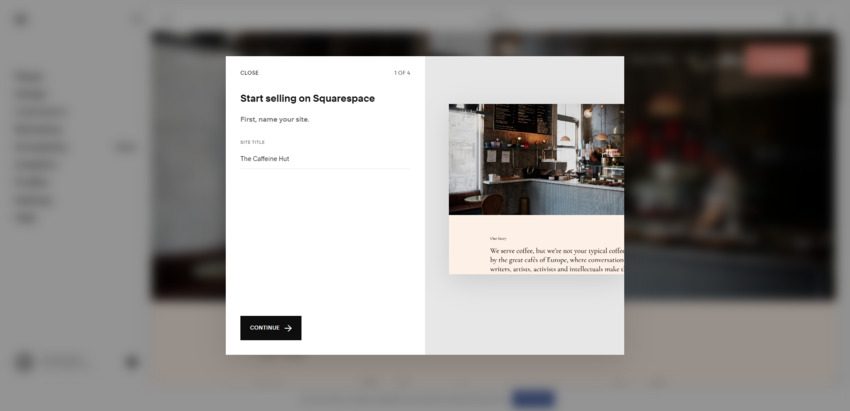
Once inside the dashboard, Squarespace prompts you to name your site (you can change this anytime). Head to Design > Site Styles to define your brand’s visual identity.
In Site Styles, you can customize:
- Fonts (including custom font uploads in newer updates)
- Color palette (primary, secondary, accents)
- Animations and transitions
- Spacing and layout density
- Button styles
- Image treatments
Squarespace offers presets from your chosen template, but you can tweak or create fully custom styles. Changes apply globally, ensuring consistency across your site.
Squarespace AI can now help suggest color schemes or generate initial text drafts based on simple prompts, saving even more time.
The Pages panel is your command center. Squarespace provides core pages (Home, About, Contact, etc.) with placeholder content.
Click Edit on any page to enter the Fluid Engine — Squarespace’s powerful drag-and-drop editor (available on version 7.1 sites). Fluid Engine gives you free-form control over sections and blocks:
- Drag and drop text, images, videos, forms, buttons, or galleries anywhere on the grid.
- Resize, overlap, or layer elements with precision.
- Create separate desktop and mobile layouts (hide blocks on specific devices).
- Add background images/videos, shapes, or dividers.
Start with the Home page. Add sections for hero banners, services, testimonials, portfolios, or calls-to-action. Replace placeholder text and images with your own content.
You can also add new pages (Basic Page, Blog, Store, Portfolio, Events, etc.) from the Pages panel. Collections like blogs or stores come with built-in templates for easy content management.
For e-commerce or bookings, Squarespace makes adding products, scheduling, or memberships straightforward with dedicated blocks.
Squarespace handles technical SEO (mobile responsiveness, fast loading, SSL) automatically, but you should optimize content manually.
For each page:
- Go to Page Settings (gear icon).
- Set a strong Page Title for search results.
- Write a descriptive URL Slug including keywords.
- Add a unique Social Image for sharing.
In the Marketing panel (under Settings), configure site-wide SEO: home page description, title formats, and more. Use Squarespace AI to generate SEO descriptions and alt text for images.
For local businesses, fill in Business Information (address, phone, hours) so it appears automatically on your site and helps with local search.
Additional tips: Use descriptive headings, add alt text to images, and consider integrating Google Analytics or other tools via built-in connections.
Navigation is easy to manage in the Pages panel. Drag pages into Main Navigation or create folders for dropdown menus. Add external links if needed.
To style the header:
- Enter Edit mode on any page.
- Hover over the header and click Edit Site Header.
- Upload logos (desktop + mobile versions), adjust transparency, layout, add CTA buttons, cart icons, or social links.
- Make the header sticky/fixed if desired.
The footer can be customized similarly with links, copyright info, newsletters, or additional content. Consistent branding here improves user experience and professionalism.
Preview your site on desktop and mobile. Use the responsive checker in Fluid Engine to ensure everything looks great on phones and tablets.
When ready, go to Settings > Site Availability. During the trial, your site can be password-protected or private.
To publish:
- Upgrade to a paid plan (Basic, Core, Plus, or Advanced — check current pricing on squarespace.com).
- Connect a custom domain (Squarespace offers a free domain with annual plans) or transfer an existing one.
- Switch availability to Public.
Congratulations — your website is live!
Explore extensions, member areas, email campaigns, analytics, and Squarespace AI for ongoing content generation. For stores, higher plans remove transaction fees and add advanced commerce tools.
Regularly update content, monitor performance, and use built-in tools for SEO and marketing.
Squarespace makes building a professional website accessible, fast, and enjoyable. With Fluid Engine, AI assistance, and all-in-one features, you can launch a beautiful site in hours or days instead of weeks.
Start your 14-day free trial today at squarespace.com and experience the process yourself. Whether it’s a portfolio, blog, online store, or business site, Squarespace has the tools to help you succeed.
FAQ — Building a Website with Squarespace (2026 Guide)
1. What is Squarespace?
Squarespace is an all-in-one website builder that allows users to create professional websites without coding, including hosting, templates, and built-in tools.
2. Do I need coding skills to use Squarespace?
No. Squarespace is designed for beginners and uses a drag-and-drop editor, so you can build a website without any coding knowledge.
3. Is Squarespace free to use?
Squarespace offers a 14-day free trial, but you’ll need to upgrade to a paid plan to publish your website.
4. How much does Squarespace cost?
Pricing starts at around $16 per month (billed annually), with higher plans offering more features like e-commerce and advanced analytics.
5. What is Fluid Engine in Squarespace?
Fluid Engine is Squarespace’s modern drag-and-drop editor that allows you to freely position, resize, and customize elements on your website.
6. Can I build an online store with Squarespace?
Yes. Squarespace includes built-in e-commerce features such as product listings, payment processing, inventory management, and checkout systems.
7. Does Squarespace include hosting and security?
Yes. Hosting, SSL certificates, and security features are included, so you don’t need to manage them separately.
8. Is Squarespace good for SEO?
Yes. Squarespace provides built-in SEO tools like customizable page titles, meta descriptions, clean URLs, and mobile optimization.
9. Can I use a custom domain name?
Yes. You can connect your own domain or get a free domain for the first year with annual plans.
10. Does Squarespace support mobile-friendly design?
Yes. All templates are fully responsive and optimized for mobile devices automatically.
11. What types of websites can I create with Squarespace?
You can create:
- Business websites
- Blogs
- Portfolios
- Online stores
- Event or booking sites
12. Can I customize my website design?
Yes. You can customize fonts, colors, layouts, animations, and more using Site Styles and the editor.
13. What AI features does Squarespace offer?
Squarespace includes AI tools that can help generate text, suggest design styles, and create content quickly.
14. How long does it take to build a website with Squarespace?
You can create a basic website in a few hours, while a more detailed site may take a few days depending on customization.
15. Is Squarespace suitable for beginners?
Yes. Squarespace is one of the most beginner-friendly website builders available in 2026.
Tinggalkan Balasan