
Can’t Upload WebP to WordPress? Simple Fixes – Complete 2026 Troubleshooting Guide
1 minggu ago
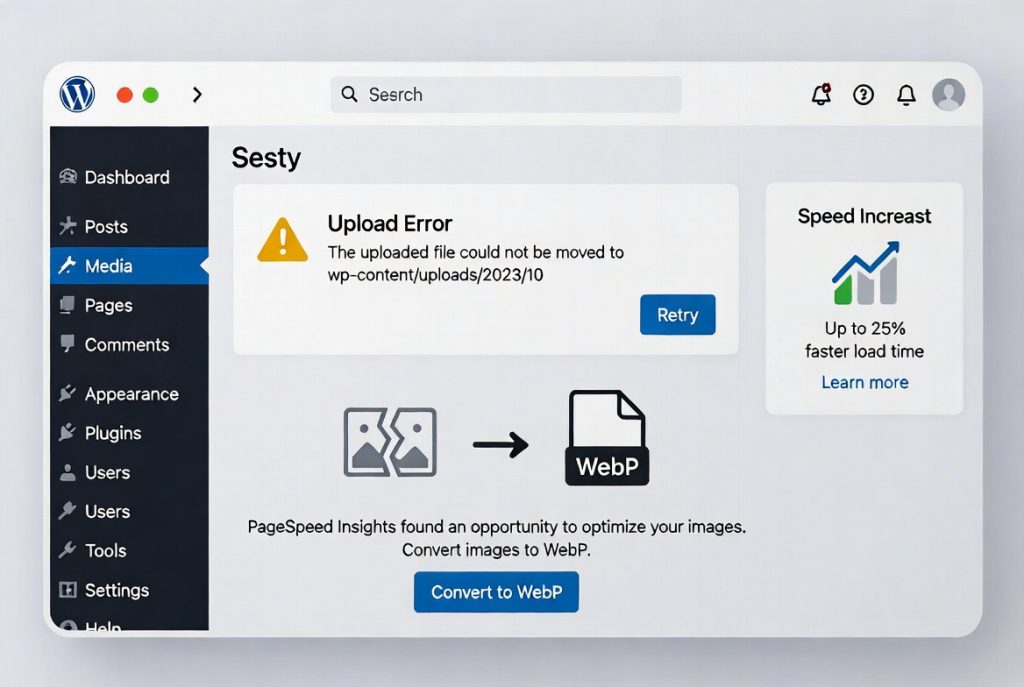
WebP has become one of the most important image formats for modern websites. Developed by Google, WebP offers significantly better compression than traditional JPEG and PNG files while maintaining excellent image quality. This results in faster page loading times, lower bandwidth usage, improved SEO scores, and a better overall user experience — especially on mobile devices.
Despite its clear advantages, many WordPress users still run into frustrating issues when trying to upload WebP images. The “Sorry, this file type is not permitted for security reasons” error is one of the most common complaints, even in 2026.
The good news is that solving WebP upload problems in WordPress is usually straightforward. In this comprehensive 2026 guide, we’ll cover:
- Why WebP is so beneficial and why you should be using it
- The most common reasons you can’t upload WebP images
- Multiple reliable solutions — from simple updates to advanced server tweaks
- Best practices for using WebP images effectively on your WordPress site
- Tools and plugins that make WebP handling easier
Whether you’re running a personal blog, an e-commerce store, a portfolio site, or a large content-heavy website, this guide will help you successfully upload and serve WebP images without compromising security or performance.

Why WebP Images Are Essential for WordPress Sites in 2026
What Is the WebP Format? WebP is an image format developed by Google that supports both lossy and lossless compression. It was specifically designed for the web, offering a superior balance between file size and visual quality compared to older formats like JPEG and PNG.
Key Advantages of WebP
- Superior Compression — WebP images are typically 25–35% smaller than equivalent JPEGs and often smaller than PNGs while maintaining similar or better quality.
- Better Image Quality — Advanced compression algorithms preserve sharpness, detail, and color accuracy better than traditional formats.
- Faster Loading Times — Smaller file sizes mean quicker page loads, which directly improves user experience and Core Web Vitals scores.
- SEO Benefits — Google and other search engines favor faster-loading sites, giving WebP-using websites a potential ranking advantage.
- Modern Web Standard — By 2026, WebP support is nearly universal across all major browsers and devices.
Real-World Impact Websites using WebP images often see significant improvements in:
- PageSpeed Insights and Lighthouse scores
- Bounce rates and user engagement
- Mobile performance (critical as mobile traffic dominates)
- Overall bandwidth costs for high-traffic sites
Despite these benefits, WordPress doesn’t always make WebP uploads seamless out of the box — especially on older installations or with certain security configurations.
Common Reasons You Can’t Upload WebP Images to WordPress
1. Older WordPress Versions Native WebP support was officially added in WordPress 5.8 (released in 2021). If you’re running an older version, the platform simply doesn’t recognize .webp files as safe by default.
2. Security Restrictions and File Type Blocking WordPress has built-in security measures that restrict certain file types to prevent malicious uploads. Even with native support in newer versions, some hosting environments, security plugins, or custom configurations continue to block WebP files.
3. Theme or Plugin Incompatibilities Certain older themes or plugins may not be fully compatible with WebP, causing display issues or upload failures. This is more common with heavily customized sites or outdated code.
4. Server Configuration Issues Some servers (especially those using strict security rules or older PHP versions) may not have the necessary MIME types configured for WebP, or they may have .htaccess rules that block the format.
5. Hosting Provider Limitations Shared hosting environments sometimes apply additional security layers that inadvertently block modern image formats like WebP.
Understanding the root cause of your specific upload issue is the first step toward fixing it quickly and safely.
Simple Fixes to Enable WebP Uploads in WordPress
Fix 1: Update to the Latest WordPress Version The easiest and most recommended solution is simply updating WordPress to the latest version (6.7+ as of 2026). Native WebP support has been steadily improved with each major release.
Step-by-step:
- Back up your site completely before updating
- Go to Dashboard > Updates
- Update WordPress core, themes, and plugins
- Test WebP upload after the update
Fix 2: Use a Reliable WebP Optimization Plugin Several excellent plugins make WebP handling seamless:
- Imagify — Excellent compression and WebP conversion
- ShortPixel Image Optimizer — Strong WebP support with bulk processing
- EWWW Image Optimizer — Lightweight and highly effective
- Optimole — Cloud-based optimization with WebP delivery
- WebP Express — Advanced server-side WebP conversion
Most of these plugins not only enable uploads but also automatically convert existing images to WebP and serve them to compatible browsers.
Fix 3: Modify the .htaccess File (Advanced Users) For users comfortable with server configuration, adding the correct rewrite rules to your .htaccess file can enable WebP support on Apache servers.
Important Safety Note: Always back up your .htaccess file before making changes. Incorrect modifications can break your site.
Fix 4: Convert Images to WebP Before Uploading If you prefer not to modify your WordPress installation, simply convert images to WebP format using external tools before uploading:
- Squoosh (online tool by Google)
- XnConvert (desktop application)
- Adobe Photoshop or Affinity Photo (with WebP export support)
- Command-line tools like Google’s cwebp
This method works even on restrictive hosting environments.
Fix 5: Check and Adjust Security Plugin Settings Many security plugins (Wordfence, Sucuri, etc.) have strict file upload rules. Review their settings and whitelist .webp files if necessary.
Best Practices for Using WebP Images on WordPress in 2026
Optimization Workflow
- Create or edit images in high quality
- Convert to WebP using a reliable tool
- Use a WebP optimization plugin for automatic handling
- Serve WebP to compatible browsers while providing fallbacks for older ones
- Regularly monitor performance with tools like PageSpeed Insights
Performance Tips
- Combine WebP with lazy loading
- Use responsive images with srcset
- Enable browser caching for WebP files
- Monitor file sizes and compression levels
SEO Considerations
- Proper alt text is still essential
- Fast loading times from WebP improve Core Web Vitals
- Structured data and image sitemaps remain important
Accessibility Best Practices
- Always include descriptive alt text
- Ensure sufficient color contrast
- Test with screen readers and keyboard navigation
Advanced Tips and Troubleshooting for Persistent Issues
When Nothing Seems to Work
- Check your hosting provider’s specific WebP support
- Consider switching to a more modern hosting environment if needed
- Test with a staging site before applying changes to your live site
Future-Proofing Your WebP Strategy
- Stay updated with WordPress core improvements
- Monitor new WebP-related plugins and tools
- Consider next-generation formats like AVIF as they gain wider support
WebP images offer clear advantages for any WordPress website — faster loading times, better quality, and improved SEO performance. While upload issues can be frustrating, the solutions are usually straightforward.
Start with the simplest fixes: updating WordPress to the latest version and installing a reliable optimization plugin like Imagify, ShortPixel, or EWWW Image Optimizer. For more control, explore server-side configurations or pre-converting images externally.
By implementing these solutions and following best practices, you can successfully use WebP images on your WordPress site and enjoy all the performance benefits they provide.
Don’t let WebP upload problems hold your site back. Start optimizing your images today and give your visitors a faster, more engaging experience.
FAQ – Fixing WebP Upload Issues in WordPress (2026)
1. What is WebP in WordPress?
WebP is a modern image format developed by Google that provides smaller file sizes with high image quality, helping WordPress sites load faster and perform better.
2. Why can’t I upload WebP images to WordPress?
Common reasons include older WordPress versions, security restrictions, plugin conflicts, server configuration issues, or hosting limitations.
3. Does WordPress support WebP by default?
Yes. WordPress has supported WebP uploads natively since version 5.8, but some servers or plugins may still block it.
4. How do I fix the “Sorry, this file type is not permitted for security reasons” error?
You can fix it by updating WordPress, installing a WebP plugin, adjusting security plugin settings, or configuring server MIME types.
5. What are the best plugins for WebP in WordPress?
Popular options include ShortPixel Image Optimizer, Imagify, EWWW Image Optimizer, Optimole, and WebP Express.
6. Do I need a plugin to use WebP images?
Not always. WordPress supports WebP natively, but plugins make conversion, compression, and delivery much easier and more automatic.
7. Can I convert images to WebP before uploading?
Yes. You can use tools like Squoosh, Photoshop, or XnConvert to convert images to WebP before uploading them to WordPress.
8. Will WebP improve my website SEO?
Yes. WebP reduces image size, improves loading speed, and helps boost Core Web Vitals, which can positively impact SEO rankings.
9. Are WebP images compatible with all browsers?
Most modern browsers fully support WebP, including Chrome, Edge, Firefox, and Safari (latest versions).
10. What should I do if WebP still doesn’t work after fixes?
Check your hosting provider, test with a staging site, disable conflicting plugins, or ask your host to enable WebP MIME support.
11. Is WebP better than JPEG and PNG?
Yes. WebP generally provides smaller file sizes than JPEG and PNG while maintaining similar or better image quality.
12. Should I switch all my images to WebP?
Yes, for best performance. However, it’s recommended to use fallback formats for older systems and ensure compatibility through plugins.
Tinggalkan Balasan