
How to Duplicate a Page in WordPress With and Without Plugins – Complete 2026 Guide
1 minggu ago

One of the most common tasks for WordPress users — whether you’re a beginner building your first site, a content creator managing a blog, or a developer maintaining a large client website — is duplicating pages, posts, or custom post types.
You might want to reuse a beautifully designed About page for a new Team member, duplicate a high-converting landing page for a new product, or quickly create similar blog posts without starting from scratch every time. Unfortunately, WordPress does not include a built-in “Duplicate” button by default.
Copying and pasting content manually is slow, error-prone, and often fails to carry over images, metadata, custom fields, SEO settings, or page builder layouts.
In this comprehensive 2026 updated tutorial, we’ll show you the fastest, easiest, and most reliable ways to duplicate pages in WordPress using three different methods:
- Using a lightweight plugin (recommended for most users)
- Using the built-in Gutenberg block editor (no plugins needed)
- Using popular page builders like Elementor (perfect for design-heavy sites)
These methods work for regular Pages, Posts, and even Custom Post Types (such as WooCommerce products, portfolio items, or events).
By the end of this guide, you’ll be able to duplicate any content on your WordPress site in seconds, saving hours of repetitive work while keeping your site clean, consistent, and efficient.
Whether you’re running a small personal blog or managing a large membership or e-commerce site, mastering page duplication is an essential WordPress skill in 2026.
Let’s dive in and explore each method step by step.
Why You Need to Duplicate Pages in WordPress
Common Real-World Scenarios
- Creating multiple similar landing pages for different products or services
- Reusing a high-performing blog post structure for new content
- Duplicating team member or portfolio pages with consistent design
- Quickly setting up new WooCommerce product pages
- Allowing clients or team members to create content faster without starting from zero
Benefits of Proper Duplication
- Saves massive amounts of time
- Maintains design consistency across the site
- Preserves SEO settings, custom fields, and metadata
- Reduces human error compared to manual copy-paste
- Improves workflow efficiency for agencies and freelancers
The Problem with Manual Copy-Paste Simply selecting all content and pasting it into a new page only copies the visible text. It often misses:
- Featured images
- Custom CSS or JavaScript
- Page builder layouts (Elementor, Divi, etc.)
- SEO metadata (Yoast/Rank Math settings)
- Custom fields and ACF data
- Permalink structure and page settings
That’s why dedicated solutions — plugins or page builder tools — are far superior.
Method 1 – Duplicate a Page Using a Plugin (Easiest & Most Popular)
The fastest and most reliable way for most users is to install a lightweight duplication plugin.
Recommended Plugin: Duplicate Page
Step-by-Step Guide
- Install and Activate the Plugin
- Go to Plugins > Add New
- Search for “Duplicate Page”
- Install and activate the plugin by mndpsingh287 (or any well-maintained duplicate plugin)
- Access the Duplicate Option
- Go to Pages > All Pages (or Posts, Products, etc.)
- Hover over any page you want to duplicate
- You will now see a new option: “Duplicate This”
- Duplicate the Page
- Click Duplicate This
- The plugin instantly creates an exact copy as a Draft
- The new page will have the same title with “– Copy” or similar added
- Customize the Duplicated Page
- Edit the new draft
- Change the title, permalink, content, featured image, and any custom settings
- Update or Publish when ready
Advantages of Using a Plugin
- Works with any post type (pages, posts, products, portfolios, etc.)
- Copies everything: content, metadata, SEO settings, custom fields
- Extremely fast — one-click duplication
- No coding required
- Lightweight and usually doesn’t impact site performance
Other Popular Duplicate Plugins
- Yoast Duplicate Post
- WP Duplicate Page
- Duplicate Page and Post
Method 2 – Duplicate Using Gutenberg Block Editor (No Plugin Needed)
If you prefer not to install any plugins, you can duplicate content directly inside the Gutenberg editor.
Step-by-Step Guide
- Open the Original Page
- Go to the page you want to duplicate
- Make sure you’re in the Block Editor (Gutenberg)
- Copy All Blocks
- Click the three vertical dots (Options) in the top-right corner
- Select “Copy all blocks”
- Create a New Page
- Go to Pages > Add New
- Paste the Content
- Click anywhere in the new empty editor
- Press Ctrl + V (or right-click and select Paste)
- All blocks, images, and layout will be pasted instantly
- Customize and Publish
- Update the title, permalink, and any specific content
- Adjust settings as needed
- Publish the new page
Pros and Cons of This Method
- No extra plugins required
- Works well for block-based content
- Does not copy page settings, SEO data, or custom fields automatically
- Best for simpler pages where you mainly need the visual content
Method 3 – Clone a Page Using Elementor Page Builder
If you use Elementor (one of the most popular page builders), you have an even more powerful built-in solution using Templates.
Step-by-Step Guide
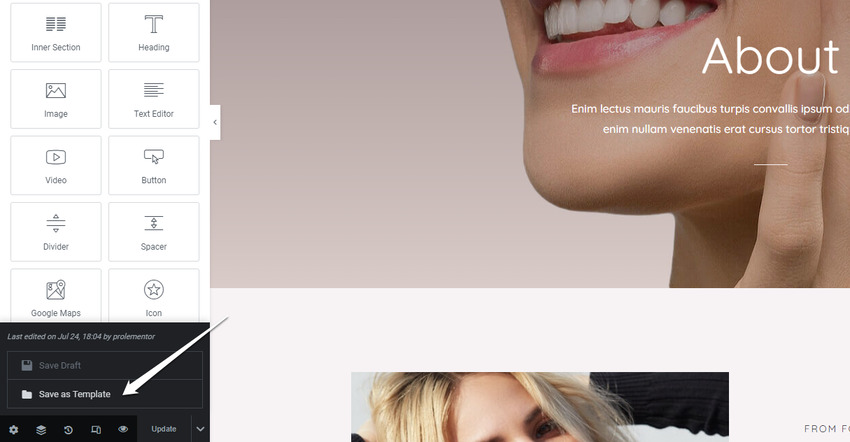
- Save the Page as a Template
- Open the page in Elementor
- Click the arrow next to the Update/Publish button
- Choose “Save as Template”
- Create a New Page
- Go to Pages > Add New
- Open the page with Elementor
- Import the Template
- Click the folder icon to open the Template Library
- Go to the “My Templates” tab
- Find your saved page and click Insert
- Apply Settings (Optional)
- Elementor will ask if you want to apply the original page’s settings
- Choose Apply if you want the same layout, colors, and global settings
- Customize and Publish
- Make any necessary changes
- Publish the new page
Why This Method Is Powerful
- Perfect for design-heavy pages
- Preserves all Elementor settings, widgets, and styling
- Reusable across multiple pages or even different sites
- Great for creating consistent landing pages or sales funnels
Best Practices and Advanced Tips for 2026
When to Use Each Method
- Simple text-heavy pages → Gutenberg Copy All Blocks
- Complex design pages → Elementor Template method
- Need to duplicate many items quickly → Plugin method
Security and Performance Tips
- Only use well-maintained plugins from reputable developers
- Keep plugins updated
- Test duplications on a staging site first for large sites
- Regularly clean up unused drafts
Advanced Use Cases
- Duplicating WooCommerce products with all variations and attributes
- Creating template pages for membership sites
- Building consistent blog post formats for content teams
Common Issues and Fixes
- Missing images after duplication → Check media library permissions
- SEO settings not copied → Use a plugin that supports Yoast/Rank Math
- Custom fields missing → Ensure the plugin supports Advanced Custom Fields
Duplicating pages in WordPress no longer needs to be a tedious, manual process. With the three methods covered in this guide — using a lightweight plugin, the Gutenberg block editor, or a page builder like Elementor — you can clone any page, post, or custom post type in just a few clicks.
The plugin method (Duplicate Page) remains the quickest all-round solution for most users, while the Gutenberg and Elementor approaches give you more control without installing extra tools.
Mastering these duplication techniques will save you countless hours, help maintain design consistency across your site, and significantly improve your overall WordPress workflow in 2026 and beyond.
Start applying these methods today and watch how much faster and more efficient your content creation becomes.
FAQ – Duplicate Pages in WordPress
1. How do I duplicate a page in WordPress?
You can duplicate a page using a plugin, copying blocks in Gutenberg, or saving and reusing templates in page builders like Elementor.
2. What is the easiest way to duplicate a page?
The easiest method is using a plugin like “Duplicate Page,” which allows one-click duplication.
3. Can I duplicate a page without a plugin?
Yes, you can copy all blocks in the Gutenberg editor and paste them into a new page.
4. Does duplication copy images and media?
Yes, most plugins and page builders copy images, but manual copy-paste may require checking media settings.
5. Will SEO settings be duplicated?
Only some plugins support copying SEO metadata (like Yoast or Rank Math). Manual methods usually do not.
6. Can I duplicate posts and custom post types?
Yes, duplication works for posts, pages, and custom post types like WooCommerce products.
7. How do I duplicate a page in Elementor?
Save the page as a template, then insert it into a new page using Elementor’s template library.
8. Is it safe to use duplicate page plugins?
Yes, as long as you use well-maintained and reputable plugins.
9. Why shouldn’t I copy and paste manually?
Manual copying may miss important elements like metadata, custom fields, and layouts.
10. Can I duplicate WooCommerce product pages?
Yes, plugins can duplicate products along with variations and attributes.
11. Will duplicated pages affect SEO?
Not if you edit the content, title, and URL properly before publishing.
12. How do I avoid duplicate content issues?
Always change titles, meta descriptions, and content before publishing the duplicated page.
13. Which method is best for beginners?
Using a plugin is the fastest and easiest option for beginners.
14. Does duplication slow down my website?
No, duplicating pages does not impact performance, but using too many plugins might.
15. Can I duplicate multiple pages at once?
Some advanced plugins allow bulk duplication, but most default tools duplicate one page at a time.
Tinggalkan Balasan